Here is how to get a list of everyone’s username out of active directory.
Get-ADUser -Filter * | FT SamAccountName -A
Here is how to get a list of everyone’s username out of active directory.
Get-ADUser -Filter * | FT SamAccountName -A
Today, I ran across the issue of some Lync clients not being able to connect up to our Lync 2010 server. They were receiving the following error:
Sign in to Microsoft Lync failed because the service is not available or you may not be connected to the internet.
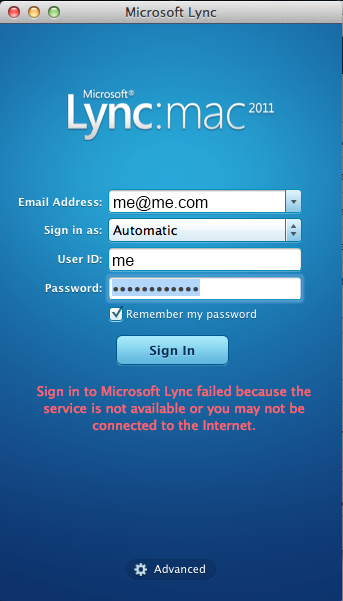
Turned out this was caused by having an invalid SSL certificate. The reason the certificate was invalid was this particular Mac was not apart of the domain and therefore the root CA’s certificate was not trusted. Simply importing the root certificate into the keychain logged the user right in.
First, all credit goes to Dustin Riley for this article. I have simply copied and pasted it for archival reasons.
The original article can be found here: http://blog.dustinriley.net/2010/03/12/binding-multiple-ssl-sites-to-same-port-in-iis6/
If you attempt to create multiple sites in IIS6 that use the same SSL port (by default 443), then you will get an error message when you try to start the second one stating “IIS was unable to start the site. Another site may already be using the port you configured for this site. Please select a unused port for this site.” To setup SSL on the second site you need to either use a different port or edit the metabase directly. IIS6 comes with a script that will allow you to edit the metabase and add the binding for the second SSL site
The script is located in the Inetpub/AdminScripts directory and will need to be run from there in the command prompt. You will need to know the site identifier for the site you want to add the binding to. You can find this in the IIS Manager, drilling down to Web Sites, it will be in one of the columns in the right pane.
Syntax:
cscript.exe adsutil.vbs set /w3svc//SecureBindings “::”
Example:
cscript.exe adsutil.vbs set /w3svc/1/SecureBindings “:443:server.example.com”
Once you complete this you should be able to start the site in the IIS Manager.
If you receive this error:
The Lync 2010 client or the Office Communicator client does not download the corporate address book and displays a notification: “Cannot Synchronize Address Book”
Give the following a shot:
I found the solution here: http://blog.insidelync.com/2012/02/lync-address-book-client-synchronization-errors-and-common-problems/ Give it a read, it’s very thorough.
If you receive this error inside of the Lync Server event log on your Front End server:
User authentication with NTLM protocol failed with error SEC_E_UNSUPPORTED_FUNCTION. This indicates a potential mismatch between security policy settings on the client and server computers.
Cause: This error can occur if the settings in “Network security: Minimum session security for NTLM SSP based (including secure RPC) clients” policy on the client computer are not the same as the settings in the “Network security: Minimum session security for NTLM SSP based (including secure RPC) servers” policy on this server. By default, the “Require 128-bit encryption” setting is disabled for computers running Windows Server 2008, Windows Vista, Windows Server 2003, Windows 2000 Server, or Windows XP. For computers running Windows 7 or Windows Server 2008 R2, this setting enabled by default.
Resolution:
Ensure that the “Network security: Minimum session security for NTLM SSP based (including secure RPC) clients” policy settings on the computers from which users log on are the same as “Network security: Minimum session security for NTLM SSP based (including secure RPC) servers” policy settings on this server.
Here is the fix:
1. Open up Group Policy Editor (Start->Run->gpedit.msc) (Or if you are on a domain, open up group policy editor on the domain controller)
2. Expand Local Policies under Computer Configuration
3. Select Security Options
4. Scroll Down and find the following policies:
5. Change both policies to have “Require 128-bit encryption” checked
Reboot the machine(s)
Copied right from Microsoft’s KB, here is how to extend a partition/disk.
When the extend command is complete, you should receive a message that states that Diskpart successfully extended the volume. The new space should be added to the existing drive while maintaining the data on the volume.
The original KB article can be found here: http://support.microsoft.com/kb/325590
Setup /m:RecoverServerToday I was faced the challenge of installing VMware Tools on a Ubuntu server via command line. I stumbled accross a step-by-step tutorial on the exact steps to accomplish this task. I am reposting for archival purposes, but all credit goes to @justinschier from http://ghosttx.com/2012/03/how-to-install-vmware-tools-v4-on-ubuntu-11-10-server/
Written: March 13, 2012
Last Updated: April 27, 2012
Tested With: Ubuntu 12.04 LTS Server, Ubuntu 11.10 Server
All the guides I found on the Internet, including VMWare’s website were outdated in some way, so I decided to write a guide of my own. I just went through these steps from start to finish on a fresh server and had no problems.
You should see the message: mount: block device /dev/sr0 is write-protected, mounting read-only
cd vmware-tools-distribLet me know if this worked for you!
Also, please follow me on Twitter: @justinschier
If you have ever wanted to view how big your hard drive/partition sizes are in Linux, but only have access to the command line interface, here is the command to do it:
df
df -H (This will show the partition sizes in MB, GB, TB, etc.)
fdisk -l | grep Disk (This will show the physical disks and their corresponding sizes)
Here are some commands that are handy to use for Office 365.
#Assign user credentials to variable “LiveCred”
$LiveCred = Get-Credential
#Connect to your Cloud-hosted Exchange using the credential stored in #LiveCred
$Session = New-PSSession -ConfigurationName Microsoft.Exchange -ConnectionUri https://ps.outlook.com/powershell/ -Credential $LiveCred -Authentication Basic -AllowRedirection
#Import Cmdlets
Import-PSSession $Session
#Close your session
Remove-PSSession $Session
#Grant Bob Barker calendar (or any folder) rights to Adam Sandler’s. The field within ” ” can be either the user principal name or primary alias
#Possible rights: Ownder, Publishing Editor, Editor, Author, Contributor, Reviewer, Custom
#Note: practice-wise (for your own mental check), the account being given access is normally to the right of the account to which you are assigning the right.
Add-MailboxFolderPermission -Identity “The.Dude:\Calendar” -AccessRights PublishingEditor -User “Test Guy”
#View permissions on a folder
Get-MailboxFolderPermission -Identity “The Dude:\Calendar”
#View all accounts that have mailbox access beyond SELF
Get-Mailbox | Get-MailboxPermission | where {$_.user.tostring() -ne “NT AUTHORITY\SELF” -and $_.IsInherited -eq $false}
#The export to a file version of above
Get-Mailbox | Get-MailboxPermission | where {$_.user.tostring() -ne “NT AUTHORITY\SELF” -and $_.IsInherited -eq $false} | Select Identity,User,@{Name=’Access Rights’;Expression={[string]::join(‘, ‘, $_.AccessRights)}} | Export-Csv -NoTypeInformation mailboxpermissions.csv
#Grant user Send-as to identity
Add-RecipientPermission <identity> -AccessRights SendAs -Trustee <user>
#View all boxes that have Send-as attributes on them
Get-RecipientPermission | where {($_.Trustee -ne ‘nt authority\self’) -and ($_.Trustee -ne ‘null sid’)}