We have a boatload of Polycom CX600 phones for our Lync deployment and recently came across one device that would not connect up to the network. In doing so, I tried to pull the log files off the device, but as you have probably found, there is no web management gui for the phones at all. Additionally, if you have figured out how to pull the files off the phone, you are probably wondering how you analyze the files as the log files are in a weird format.
- Find the IP address of the phone
- Press the middle button on the phone, select System Information, and you should see the IP address.
- Navigate to ftp://xxx.xxx.xxx.xxx where the x’s is the IP address of the phone
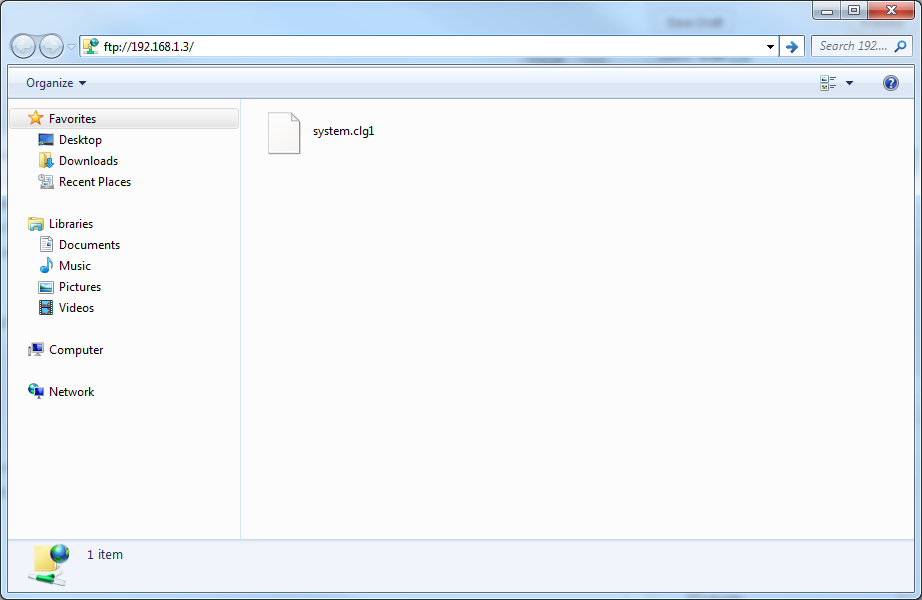
- Copy the clg* files from the phone over to your desktop
- Download a copy of readlog.zip (contains readlog.exe)
- Please thank user NeedsCoffee over on the technet forum for providing this! 🙂
http://social.technet.microsoft.com/Forums/lync/en-US/762fd63a-0813-4474-aa2f-8e633d669362/download-readlogexe-to-review-log-files-from-lync-phone-edition-devices#bd3c9cd0-aff5-4473-b616-07fc751a12fe - Please thank John from my comments below for providing another copy
- Note: I scanned the version of readfile John provided in the comments below with http://virustotal.com and uploaded it to my site so we don’t have to worry about the free upload sites expiring the download. If you are the original author of this file and do not wish for it to be distributed, please let me know and I will remove the link. Here are the virustotal results: https://www.virustotal.com/en/file/2a081b552f0d5678122f00ed796e1aeff376d7feb5033adf99149403a0296d61/analysis/1391885100/
- Please thank user NeedsCoffee over on the technet forum for providing this! 🙂
- Execute the following command to covert the clg file to text
- readlog.exe “system[1].clg1” “system[1].txt”
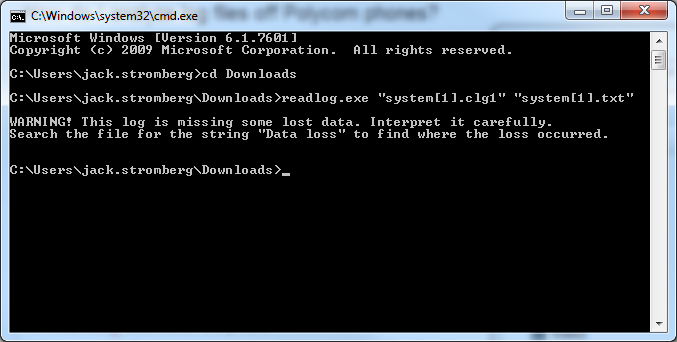
- readlog.exe “system[1].clg1” “system[1].txt”
- Open up the text file in notepad
- Here you can see some info about the phone trying to pull the certificate from the lync provisioning service.
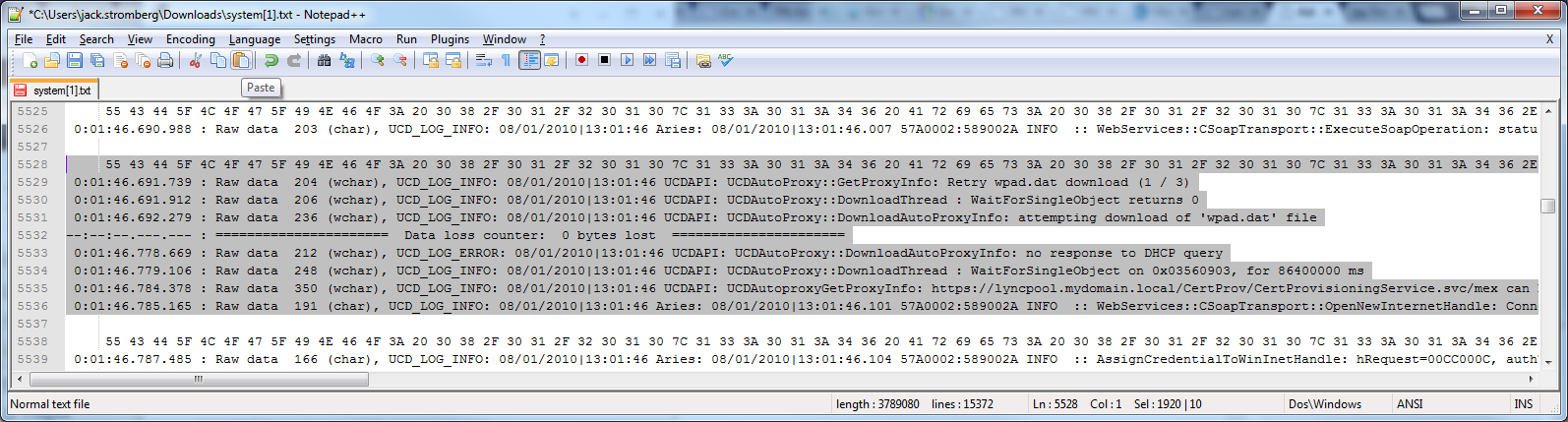
- Here you can see some info about the phone trying to pull the certificate from the lync provisioning service.
That should do it! The log file contains a lot of debugging information that Polycom can use to figure out what is going on, or every once in awhile you will luck out and see if the phone is having a tough time finding the certificate server, time server, etc.