Author Archives: Jack

DirSync – Unable to establish a connection to the authentication service. Contact Technical Support.

Symptom: You receive the following errors when running the Windows Azure Active Directory Sync tool Configuration Wizard or the Microsoft Online Services Directory Synchronization Configuration Wizard.

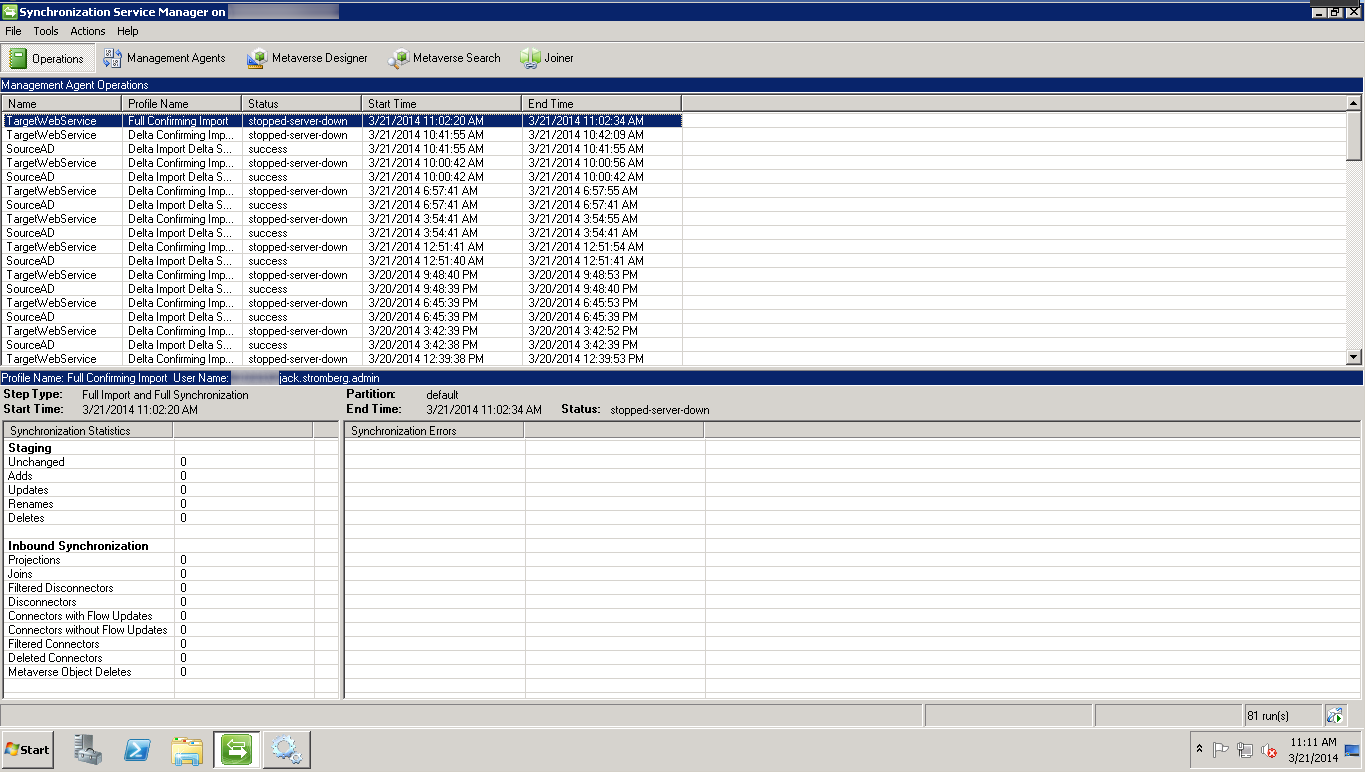
Synchronization Service Manager shows stopped-server-down status.
stopped-server-down Synchronization Service Manager

You receive the following events inside of event viewer:

Log Name: Application
Source: Directory Synchronization
Date: %Date%
Event ID: 0
Task Category: None
Level: Error
Keywords: Classic
User: N/A
Computer: %ComputerName%
Description:
Unable to establish a connection to the authentication service. Contact Technical Support. GetAuthState() failed with -2147186688 state. HResult:0. Contact Technical Support. (0x80048862)
Log Name: Application
Source: Directory Synchronization
Date: %Date%
Event ID: 102
Task Category: None
Level: Error
Keywords: Classic
User: N/A
Computer: %ComputerName%
Description:
Unable to establish a connection to the authentication service. Contact Technical Support.

Log Name: Application
Source: FIMSynchronizationService
Date: %Date%
Event ID: 6803
Task Category: Management Agent Run Profile
Level: Error
Keywords: Classic
User: N/A
Computer: %ComputerName%
Description:
The management agent “TargetWebService” failed on run profile “Delta Confirming Import” because the server encountered errors.

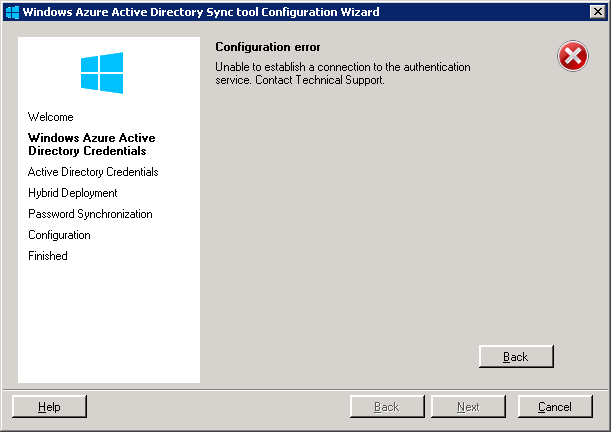
The Windows Azure Active Directory Sync tool Configuration Wizard presents you the following error message:
Unable to establish a connection to the authentication service. Contact Technical Support.
Unable to establish a connection to the authentication service. Contact Technical Support

Solution: This turns out to be an issue with the provided credentials entered in the Windows Azure Active Directory Credentials step.  Please make sure you verify the following.

  1. Do not use a federated Global Administrator service account.  Federated service accounts are not allowed to be used with the synchronization tool.  You should have a non-federated Global Administrator account with an @mydomain.onmicrosoft.com UPN.
  2. Ensure your Office 365 Global Administrator service account’s password has not expired.
ADFS v3 on Server 2012 R2 – Allow Chrome to automatically sign-in internally

Symptom: When upgrading from ADFS v2.0 to ADFS v3 built natively into Server 2012 R2, I noticed Chrome stopped auto-logging in people when trying to hit the ADFS server from inside the corporate network.

Solution: We need to allow NTLM authentication for the Google Chrome useragent.

  1. Login to your primary ADFS server
  2. NOTE: This step is no longer applicable on newer versions of Chrome.
    This is only applicable if running extremely old versions of Chrome (v50 or lower) — the fix has been added in Chrome v51 and higher.

    Execute the following command to disable Extended Protection TokenCheck (See notes for what this is at the bottom of this article)

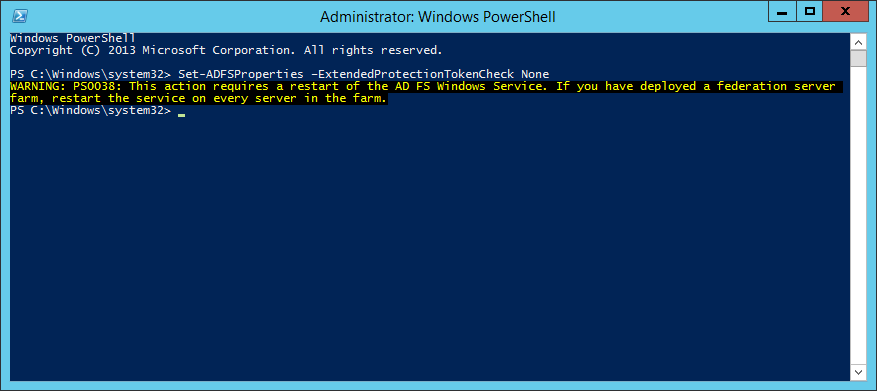
    1. Set-ADFSProperties –ExtendedProtectionTokenCheck None
      Set-ADFSProperties -ExtendedProtectionTokenCheck None
  3. Execute the following command to get the current list of supported user-agents for NTLM authentication
    1. [System.Collections.ArrayList]$UserAgents = Get-AdfsProperties | select -ExpandProperty WIASupportedUserAgents

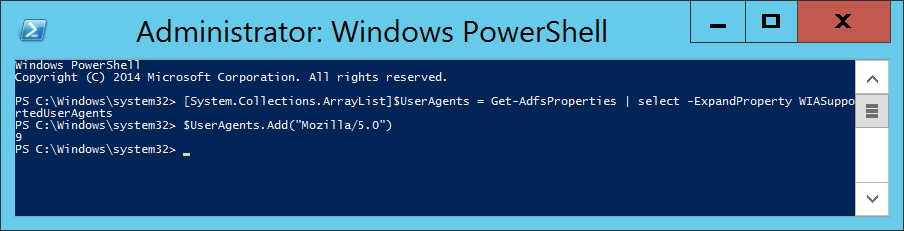
  4. Execute the following command to inject the user agent into a temporary array of user agents already added to ADFS.
    1. $UserAgents.Add(“Mozilla/5.0”)
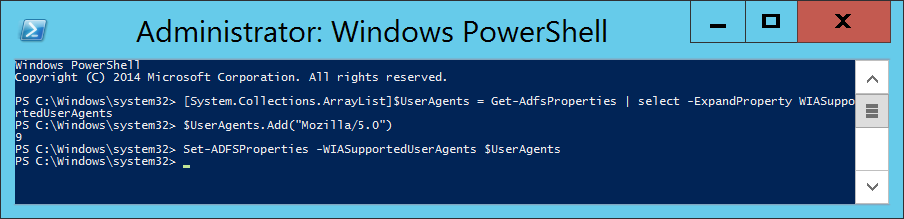
  5. Execute the following command to commit the change.
    1. Set-ADFSProperties -WIASupportedUserAgents $UserAgents
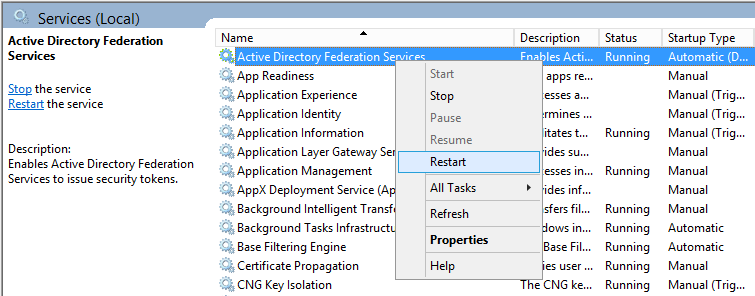
  6. Restart the Active Directory Federation Services service on each of the ADFS farm servers for the changes to take effect.  You do not need to make any changes to the proxy servers.
    Restart Active Directory Federation Services - Restart

Notes

Shout out to Jon Payne in the comments section below for the idea of putting all the values into an ArrayList and then committing the arraylist to ADFS vs adding in all the strings manually.

ExtendedProtectionTokenCheck – Copied directly from technet – Specifies the level of extended protection for authentication supported by the federation server. Extended Protection for Authentication helps protect against man-in-the-middle (MITM) attacks, in which an attacker intercepts a client’s credentials and forwards them to a server. Protection against such attacks is made possible through a Channel Binding Token (CBT) which can be either required, allowed or not required by the server when establishing communications with clients.  http://technet.microsoft.com/en-us/library/ee892317.aspx

PowerShell command to find all disabled users in Active Directory

Here is a quick powershell command to find all users inside of your Active Directory domain that have been marked as disabled (this will exclude disabled computers):

Get-ADUser -Filter {Enabled -eq $false} | FT samAccountName

Additionally, you can specify which additional options you would like to show by change the filter table command we are piping the results to.  For example, this command will show the samAccountName, first name, and last name of the disabled users.

Get-ADUser -Filter {Enabled -eq $false} | FT samAccountName, GivenName, Surname

If you want no formatting whatsoever and have AD spit a bunch of information back at you, try running just the Get-ADUser part with the filter applied.
Get-ADUser -Filter {Enabled -eq $false} 

The following command below can be used to pull a list of disabled users and computers:

Search-ADAccount -AccountDisabled


[How-To] ThinApp Internet Explorer 9 for Windows 7 x64

Here is a comprehensive guide on how to ThinApp or virtualizate Internet Explorer 9 so you can run it in tandom with other Internet Explorer versions.

  1. Start your VM
    1. For this tutorial, I am using a blank Windows 7 64-bit instance (not with SP1) using ThinApp Setup Capture 5.0.
  2. Make sure you have the Internet Explorer 9 pre-requisites package installed.  The prerequisites can be found in this KB article: http://support.microsoft.com/kb/2399238
    Use Windows6.1-KB2454826-v2-x64.msi or  Windows6.1-KB2454826-v2-x32.msi depending on your machine (one is 32-bit the other is 64-bit)
    Internet Explorer 9 Prereqs
  3. Run the MSI
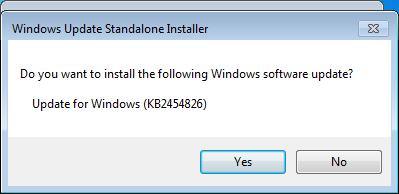
  4. Click Yes when it asks to install
    Update for Windows KB2454826
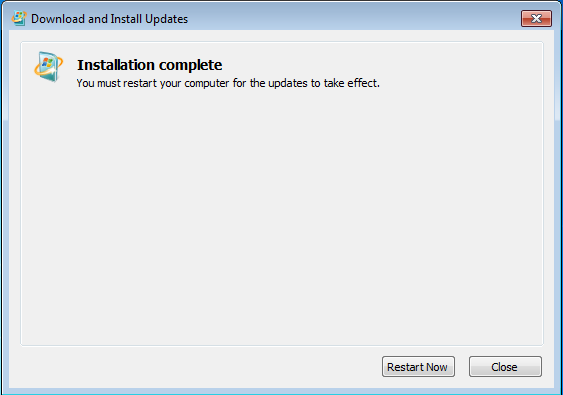
  5. Restart your machine when prompted
    Windows Updates - Installation complete - Restart Now
  6. Copy the IE9 offline installer to your machine
    http://windows.microsoft.com/en-us/internet-explorer/ie-9-worldwide-languages
    Internet Explorer 9 Installer
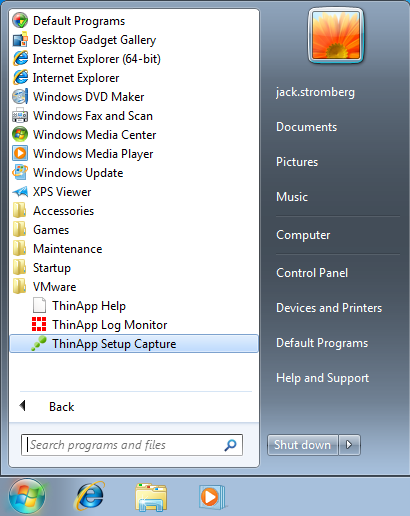
  7. Run the VMware->ThinApp Setup Capture program
    ThinApp Setup Capture - Start Menu
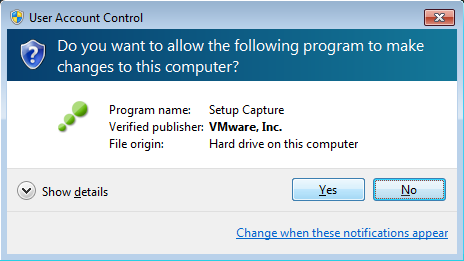
  8. Click Yes on the UAC Setup Capture dialog
    UAC - Setup Capture
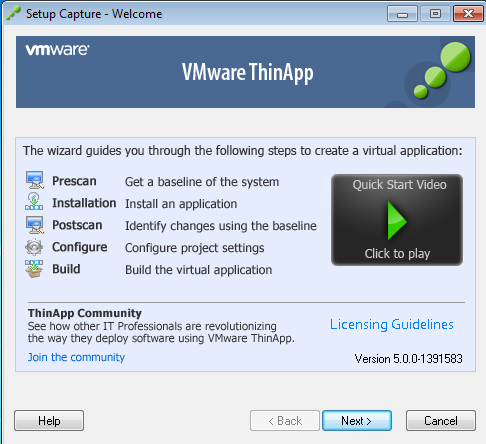
  9. Click Next on the Setup Capture – Welcome screen
    Setup Capture - Welcome
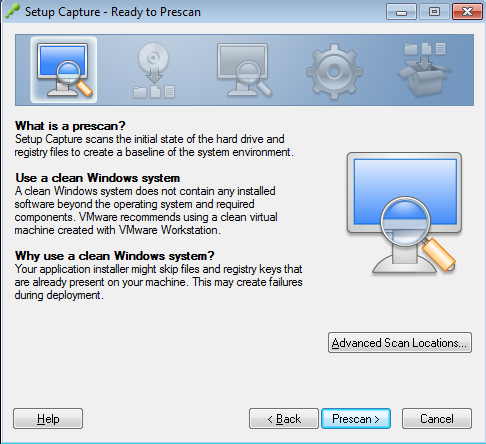
  10. Click the Prescan > button
    Setup Capture - Prescan
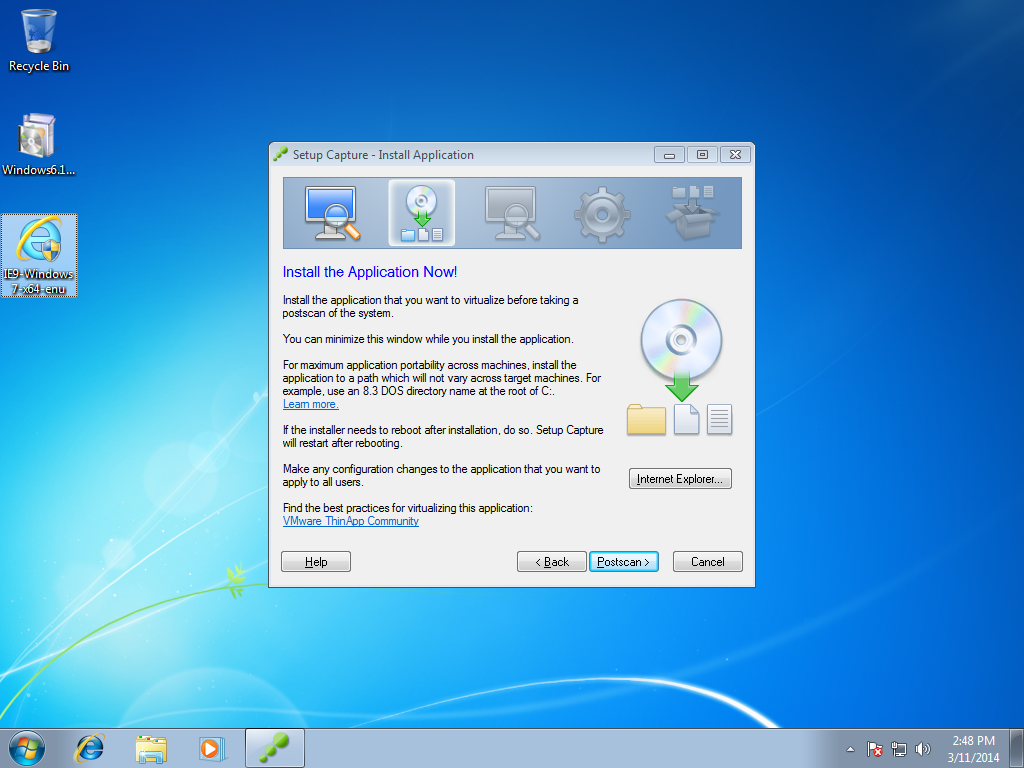
  11. Run the installer IE9-Windows7-x64-enu.exe when you get to the Install the Application Now! screen
    Setup Capture - Install Application IE9
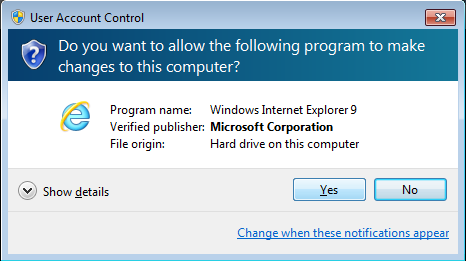
  12. Click Yes on the UAC screen
    UAC - Internet Explorer 9
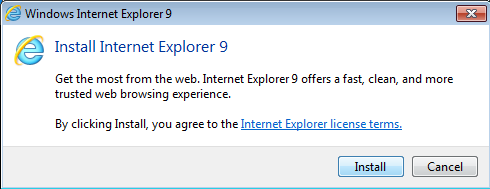
  13. Click Install
    Install Internet Explorer 9
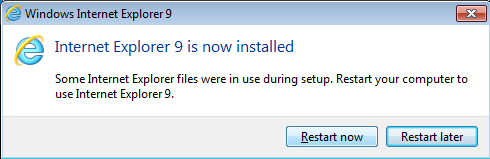
  14. Click Restart now when prompted
    Internet Explorer 9 Install - Restart Now
  15. Click Yes on the UAC popup to launch the Setup Capture process again
    UAC - Setup Capture
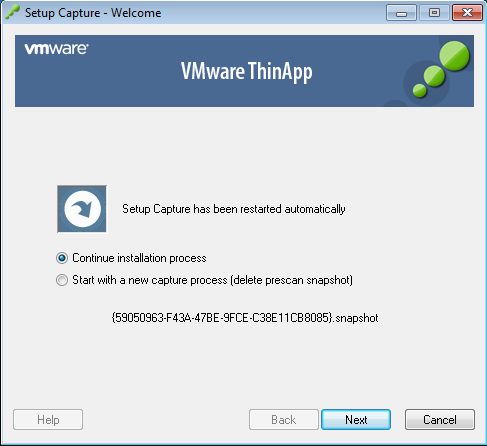
  16. Click Next on the Continue installation process window
    Setup Capture - Welcome - Continue installation process
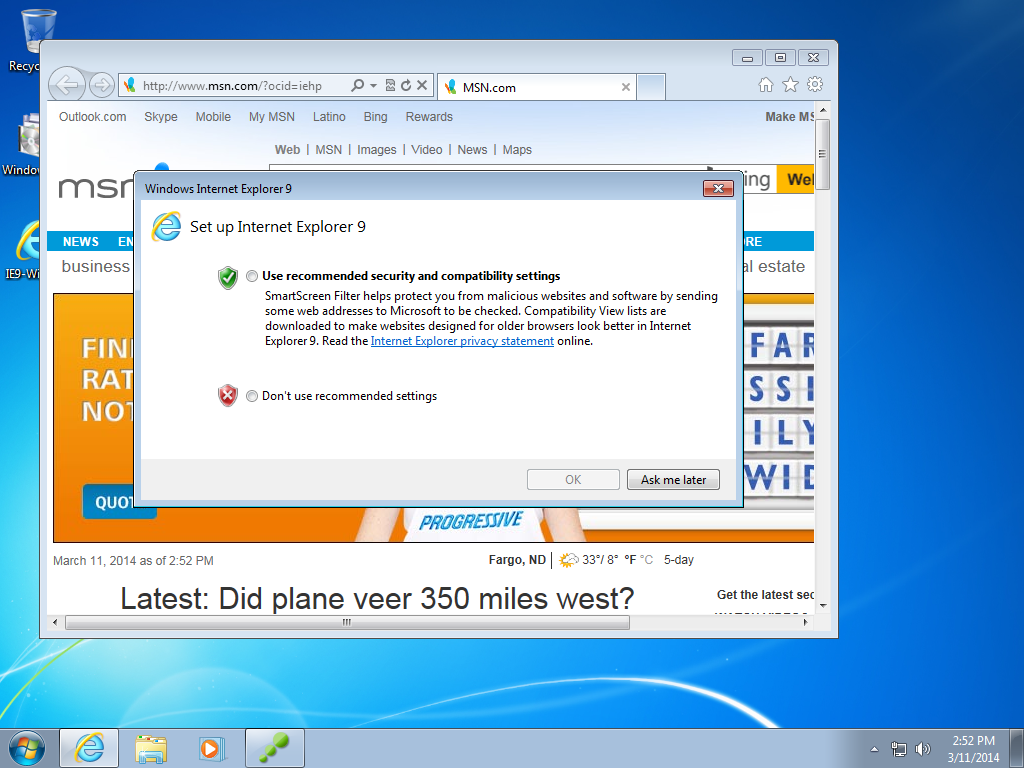
  17. Launch the Internet Explorer 9 program
    Internet Explorer 9 - Clean Install
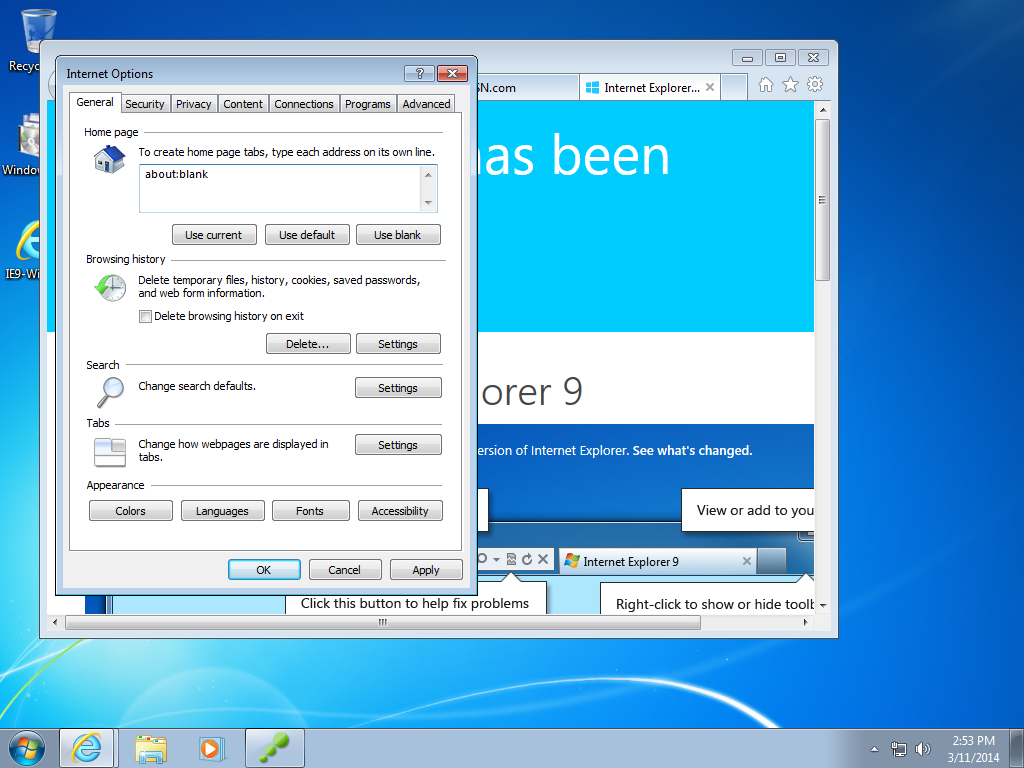
  18. Customize Internet Explorer how you want it on your main machine.  You can set security settings, default homepage, etc. (I like to set my homepage to about:blank since the ThinApps I have usually get deployed in virtual environments).  Close Internet Explorer when you have things the way you want.
    Internet Explorer 9 - Thinapp - Customize
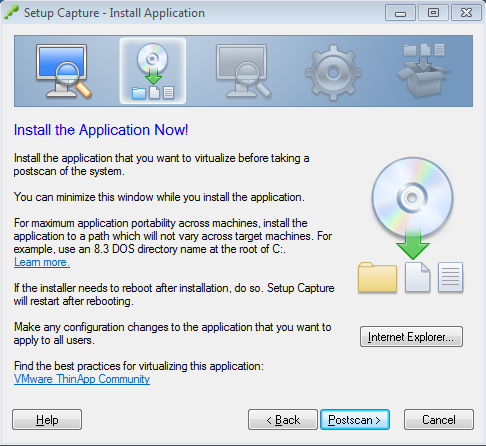
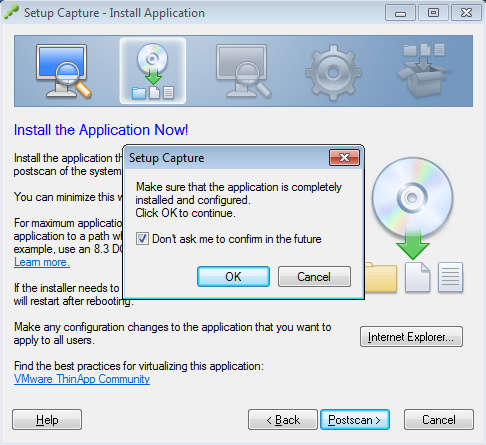
  19. Click Postscan > when you have finished customing Internet Explorer 9
    Setup Capture - Install Application - Postscan
  20. Click OK on the Setup Capture screen
    Setup Capture - OK Button
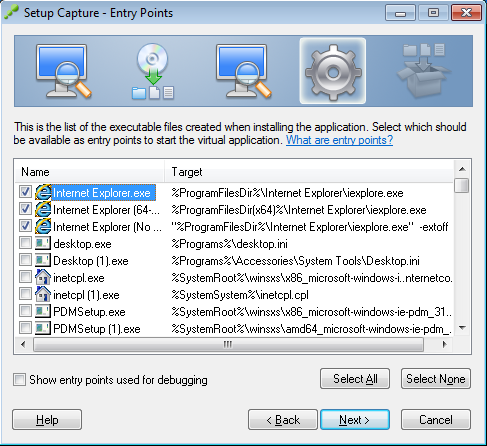
  21. Uncheck the desktop.exe and inetcpl.exe Entry Points and click Next >
    (I suppose you could leave the inetcpl.exe, but I feel leaving it unchecked is a cleaner solution).
    Setup Capture - Entry Points - Internet Explorer 9
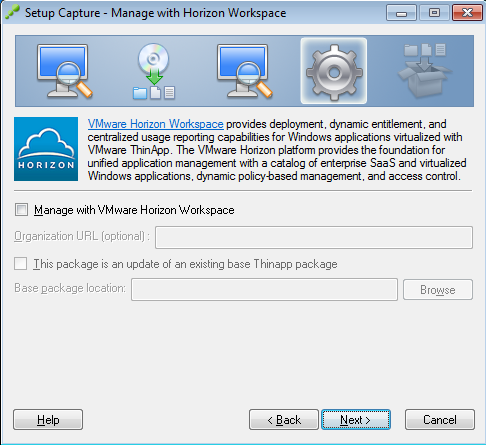
  22. Click Next >
    Setup Capture - Manage with Horizon Workspace
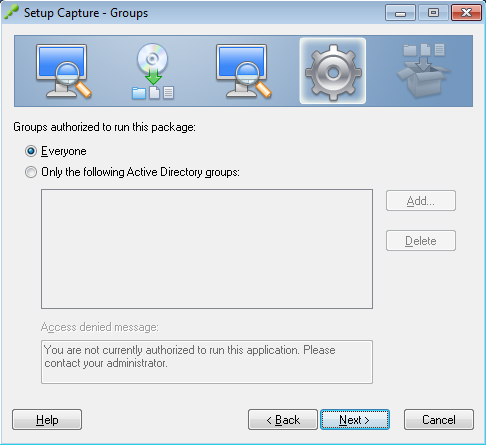
  23. Click Next >
    Setup Capture - Groups
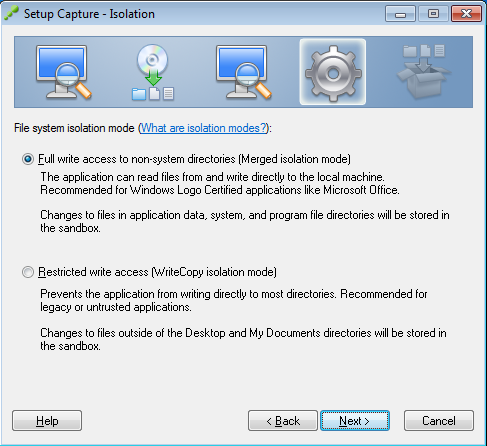
  24. Click Next >
    Setup Capture - Isolation - Full write access to non-system directories
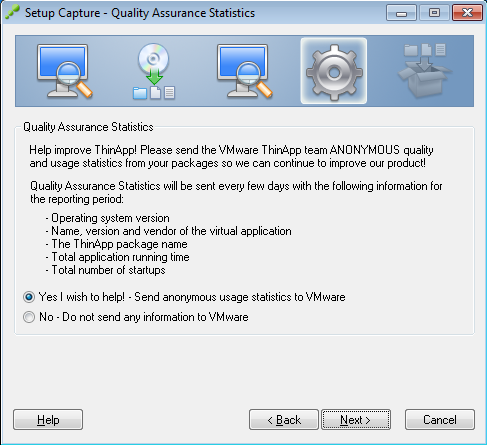
  25. Click Next >
    (you can select No if you want to)
    Setup Capture - Quality Assurance Statistics
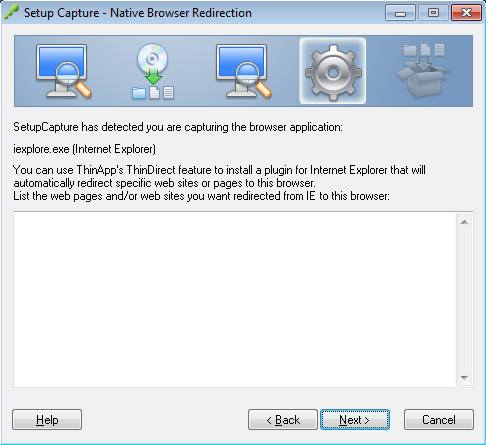
  26. Click Next >
    Setup Capture - Native Browser Redirection
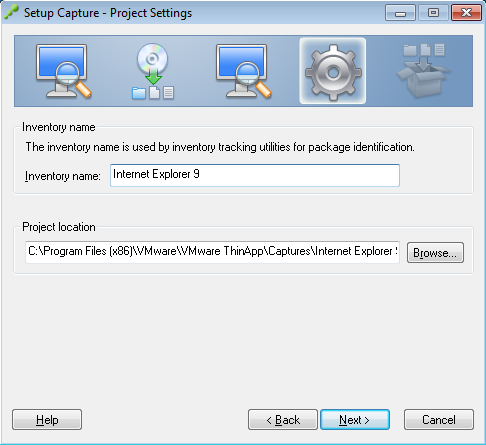
  27. Change the Inventory name to Internet Explorer 9 and click Next >
    Setup Capture - Project Settings - Internet Explorer 9
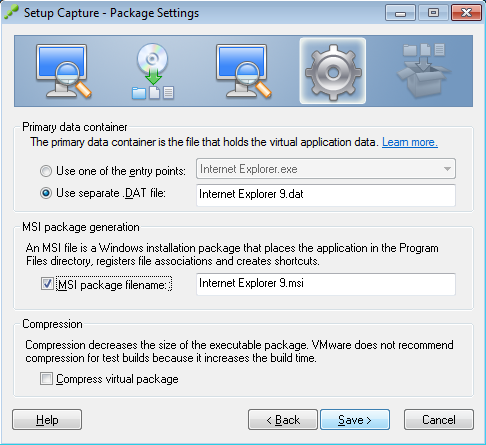
  28. Ensure Use seperate .DAT file is checked, check Generate MSI package if you want to deploy this as an installer, click Save >
    Setup Capture - Package Settings - Internet Explorer 9
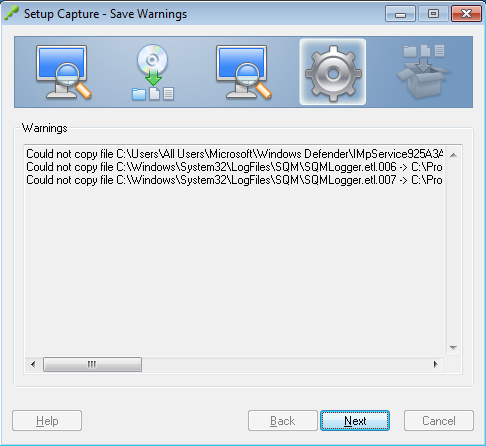
  29. Click Next if you receive some capture warnings provided they look like they aren’t Internet Explorer related.
    Note: Your warnings could look a little different than mine, that is ok.
    Setup Capture - Save Warnings
  30. Optional Step: Deploying a desktop icon
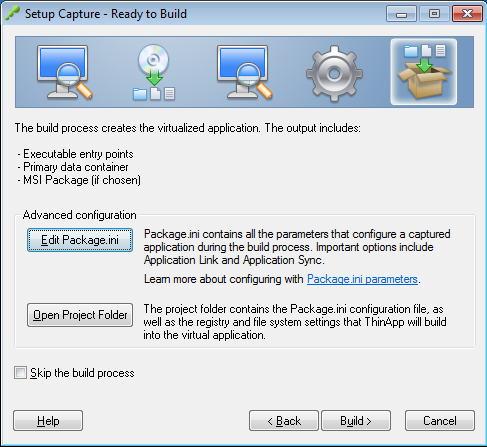
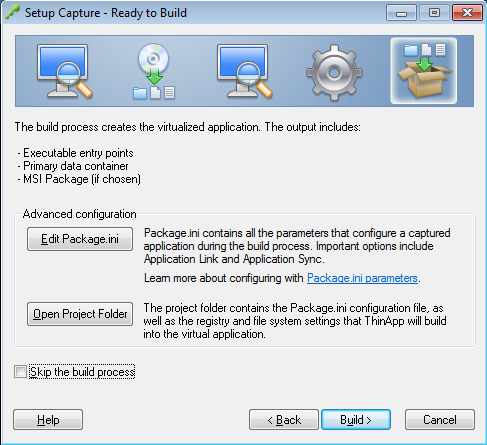
    1. Click Edit Package.ini
      Setup Capture - Ready to Build - Edit Package.ini
    2. Scroll down to Internet Explorer.exe and change the Shortcuts line to contain %Desktop%;%Programs% and change [Internet Explorer.exe] to [Internet Explorer 9.exe].  Save and exit notepad.
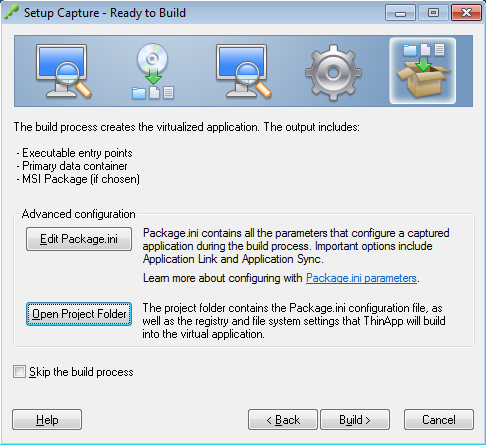
    3. Click on Open Project Folder
      Setup Capture - Ready to Build - Open Project Folder
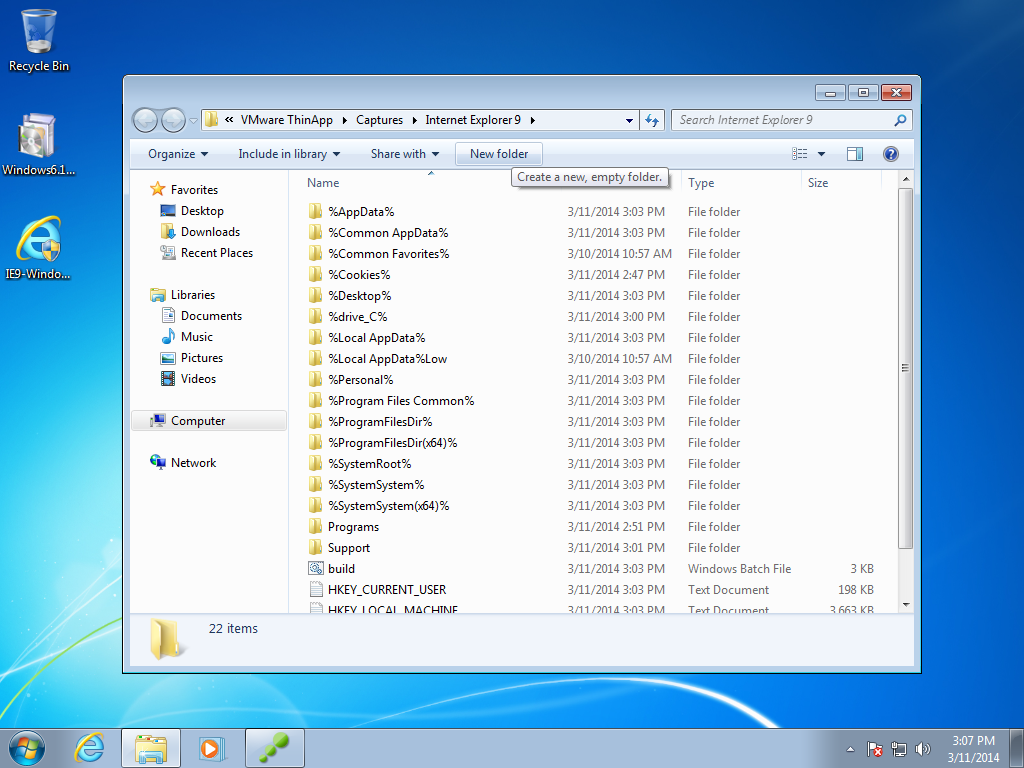
    4. Click New Folder
      Create a new folder
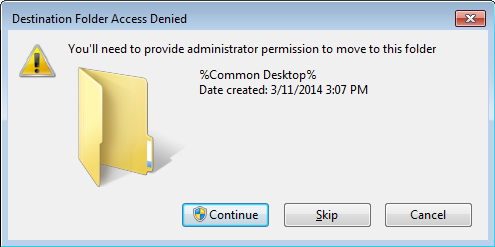
    5. Click Continue on the UAC popup
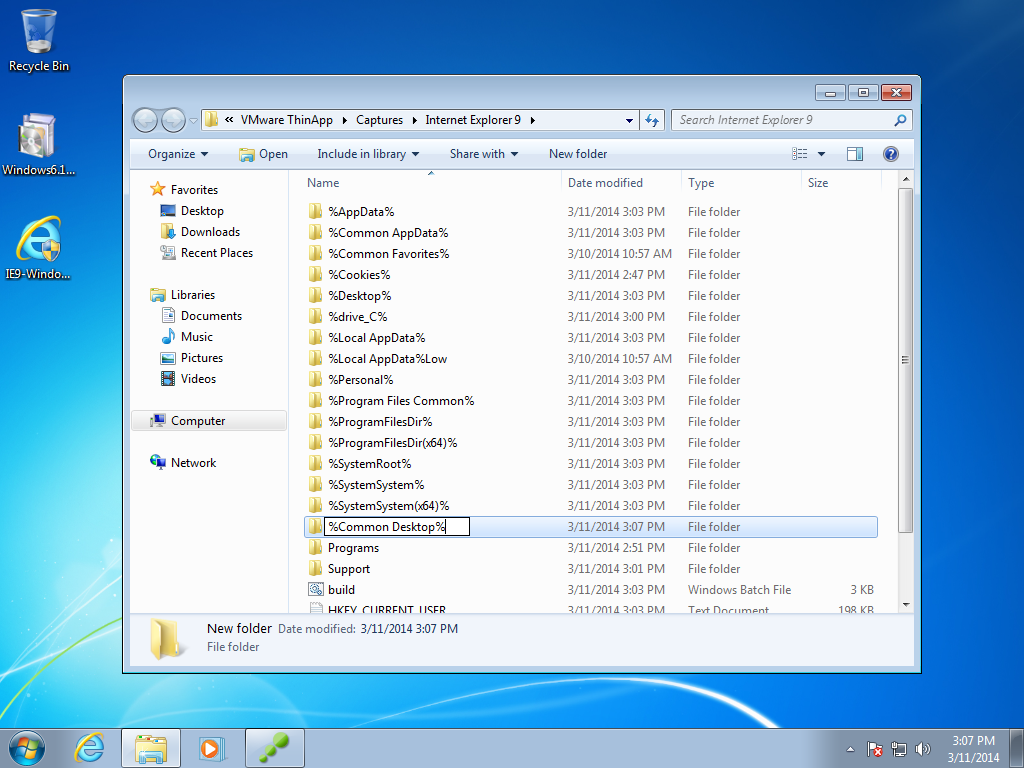
    6. Enter %Common Desktop% on the new folder name
      Create a new folder - Common Desktop
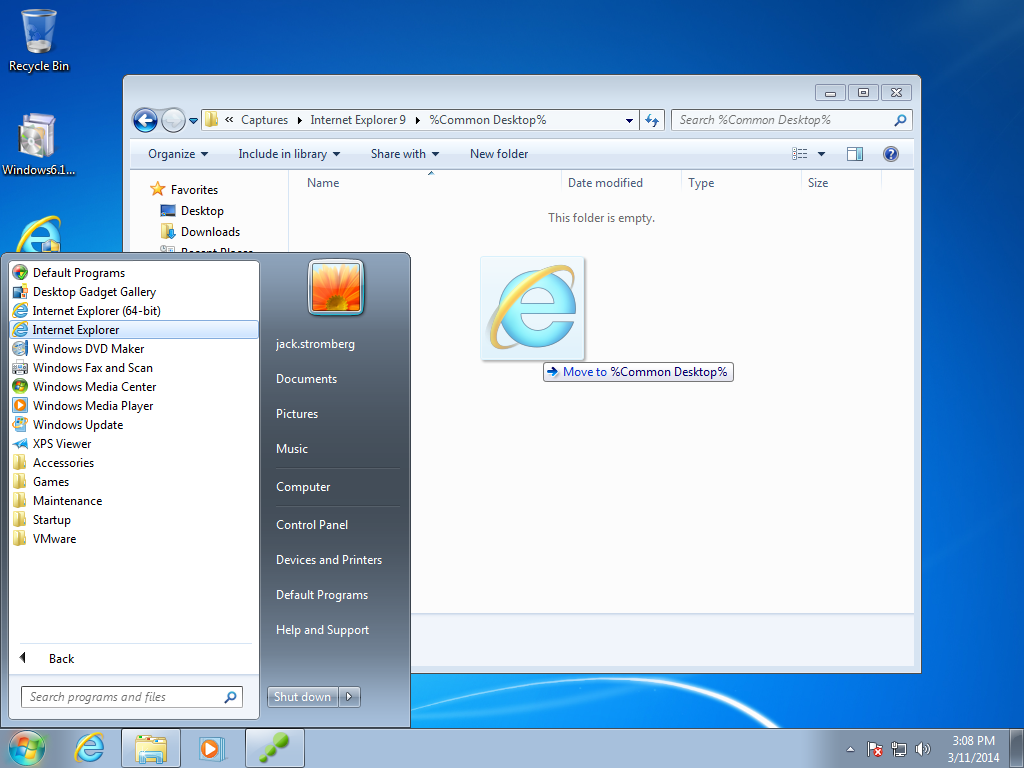
    7. Drag the Internet Explorer icon from your start menu into your new %Common Desktop% folder
      Thinapp Drag Shortcut
    8. Click Continue on the UAC popup
      Destination Folder Access Denied - Common Desktop - Thinapp
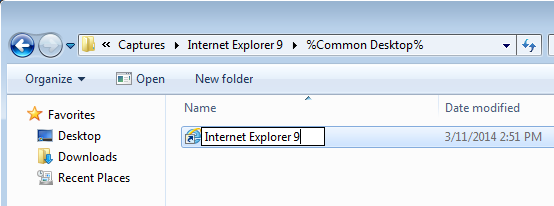
    9. Rename the icon to Internet Explorer 9
      Rename Internet Explorer 9 Shortcut
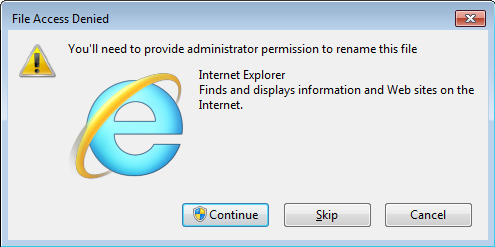
    10. Click Continue on the UAC popup
      File Access Denied - Internet Explorer
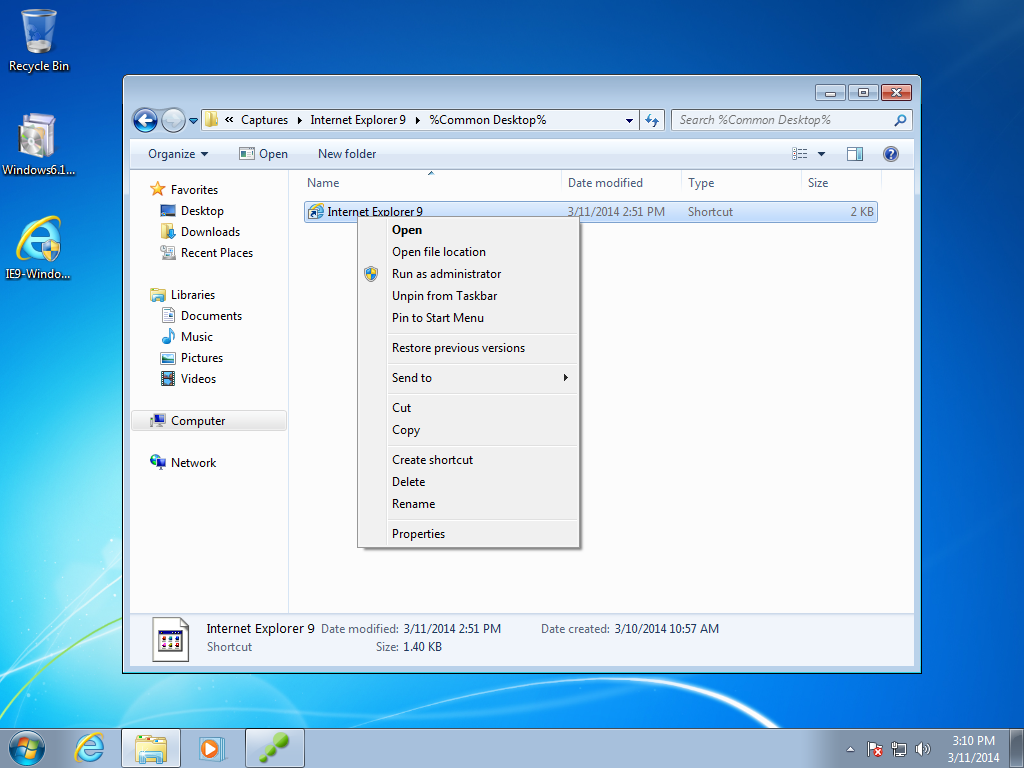
    11. Right click on the icon and select Properties
      Internet Explorer 9 Shortcut - Properties
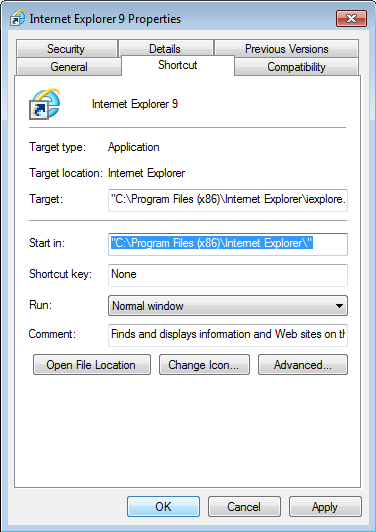
    12. Change the Start in path from %HOMEDRIVE%%HOMEPATH% to “C:\Program Files (x86)\Internet Explorer\” and click OK
      Internet Explorer 9 Shortcut Properties
  31. Click Build >
    Setup Capture - Ready to Build - Build
  32. Click Finish
    Setup Capture - Build Project - Finish
  33. Test your Internet Explorer 9 Thinapp on another machine! 🙂
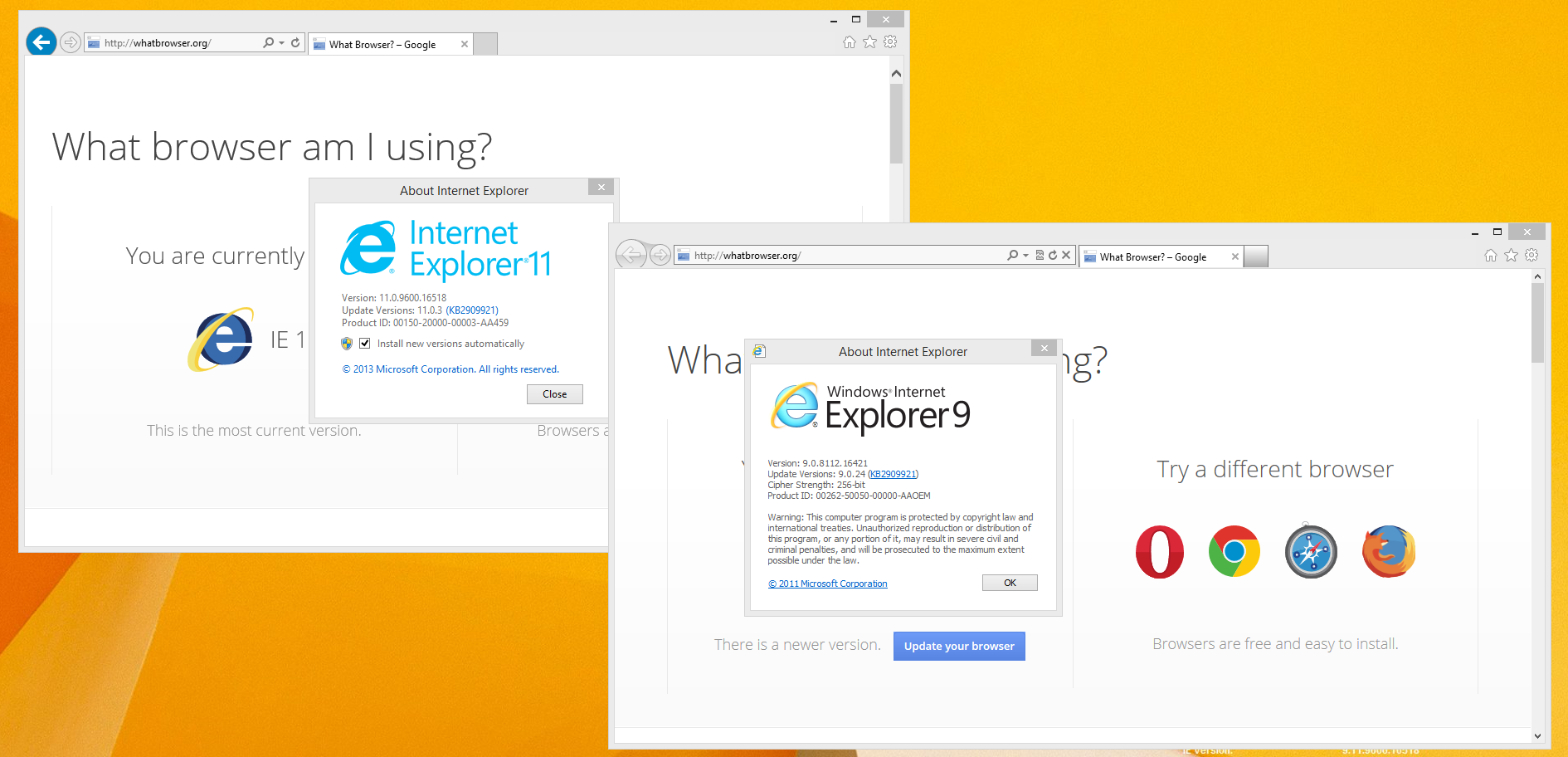
    IE11 and IE9

VMware Horizon View Guest Error – SvmException occured The volume is not mounted

Symptom(s): The VMware Horizon View Administration console shows a VM stuck on the “customizing” state and the VMware View Composer Guest Agent Server service stops when trying to start it on the deployed VM.  Additionally, inside of the c:\windows\temp\viewcomposer-ga.log file you see the stack trace in red below.

For reference, at the time of writing this article, I was running I was running 5.3.0 build-1427647 of the View Composer Guest Agent on a Windows 7 SP1 x64 VM.

[01/28/14 14:53:05] Status: (svmGa:195) Got kernel32 dll handle.
[01/28/14 14:53:05] Status: (svmGa:206) Obtained func for enabling process DEP.
[01/28/14 14:53:05] Status: (svmGa:212) Enabled process DEP.
[01/28/14 14:53:05] Status: (svmGa:419) VMware View Composer Guest Agent service started 5.3.0 build-1427647
[01/28/14 14:53:06] Status: (svmGa:439) SvmException occured
[01/28/14 14:53:06] Error: (svmGa:444) SvmException occured The volume is not mounted: 
StackTrace: 
—-Backtrace using dbghelp.dll—-
Module path: C:\Program Files (x86)\Common Files\VMware\View Composer Guest Agent\vmware-svi-ga.exe
Module directory: C:\Program Files (x86)\Common Files\VMware\View Composer Guest Agent\
backtrace[00] ebp 0x0117ee4c eip 0x0046304e params 0x0117ef74 0x00c50b28 0x0117ef4c 0x0117f200 [C:\Program Files (x86)\Common Files\VMware\View Composer Guest Agent\vmware-svi-ga.exe base 0x00400000 0x0001:0x0006204e] (no symbol information)
backtrace[01] ebp 0x0117ee6c eip 0x0040924e params 0x0117efd4 0x0117f394 0x00c50b28 0x00c50b44 [C:\Program Files (x86)\Common Files\VMware\View Composer Guest Agent\vmware-svi-ga.exe base 0x00400000 0x0001:0x0000824e] (no symbol information)
backtrace[02] ebp 0x0117f20c eip 0x00433bf2 params 0x0117f34c 0x002b7cf8 0x00c50b28 0x00000002 [C:\Program Files (x86)\Common Files\VMware\View Composer Guest Agent\vmware-svi-ga.exe base 0x00400000 0x0001:0x00032bf2] (no symbol information)
backtrace[03] ebp 0x0117f37c eip 0x004341f0 params 0x00c50b70 0x0117f394 0x0065e6d0 0x00000012 [C:\Program Files (x86)\Common Files\VMware\View Composer Guest Agent\vmware-svi-ga.exe base 0x00400000 0x0001:0x000331f0] (no symbol information)
backtrace[04] ebp 0x0117f3e0 eip 0x00417c53 params 0x0117fa48 0x7c3a1ce3 0x00c50e78 0x0065e6d0 [C:\Program Files (x86)\Common Files\VMware\View Composer Guest Agent\vmware-svi-ga.exe base 0x00400000 0x0001:0x00016c53] (no symbol information)
backtrace[05] ebp 0x0117faf0 eip 0x00419be5 params 0x0117fd98 0x00000001 0x0117fe38 0x004c1914 [C:\Program Files (x86)\Common Files\VMware\View Composer Guest Agent\vmware-svi-ga.exe base 0x00400000 0x0001:0x00018be5] (no symbol information)
backtrace[06] ebp 0x0117fe10 eip 0x0041b139 params 0x00400000 0x00000010 0x00000002 0x00000085 [C:\Program Files (x86)\Common Files\VMware\View Composer Guest Agent\vmware-svi-ga.exe base 0x00400000 0x0001:0x0001a139] (no symbol information)
backtrace[07] ebp 0x0117ff24 eip 0x00401e23 params 0000000000 0x002af6e0 0x002af6e0 0000000000 [C:\Program Files (x86)\Common Files\VMware\View Composer Guest Agent\vmware-svi-ga.exe base 0x00400000 0x0001:0x00000e23] (no symbol information)
backtrace[08] ebp 0x0117ff74 eip 0x00403e75 params 0x00000001 0x002af6f0 0000000000 0x0117ff94 [C:\Program Files (x86)\Common Files\VMware\View Composer Guest Agent\vmware-svi-ga.exe base 0x00400000 0x0001:0x00002e75] (no symbol information)
backtrace[09] ebp 0x0117ff88 eip 0x76f575a8 params 0x002af6e0 0x0117ffd4 0x77769f72 0x002af6e0 [C:\Windows\SysWOW64\sechost.dll base 0x76f50000 0x0001:0x000065a8] (I_ScIsSecurityProcess + 0x0269)
backtrace[10] ebp 0x0117ff94 eip 0x7654336a params 0x002af6e0 0x768af8a4 0000000000 0000000000 [C:\Windows\syswow64\kernel32.dll base 0x76530000 0x0001:0x0000336a] (BaseThreadInitThunk + 0x0012)
backtrace[11] ebp 0x0117ffd4 eip 0x77769f72 params 0x76f57587 0x002af6e0 0000000000 0000000000 [C:\Windows\SysWOW64\ntdll.dll base 0x77730000 0x0001:0x00029f72] (RtlInitializeExceptionChain + 0x0063)
backtrace[12] ebp 0x0117ffec eip 0x77769f45 params 0x76f57587 0x002af6e0 0000000000 0000000000 [C:\Windows\SysWOW64\ntdll.dll base 0x77730000 0x0001:0x00029f45] (RtlInitializeExceptionChain + 0x0036)
—-End of backtrace—-

Troubleshooting: Tried uninstalling all VMware products, and reinstalling the following in the following order: VMware Tools, VMware View Agent, VMware Horizon View Feature Pack.

Additionally, tried applying the appropriate guest customization script provided in the following VMware article: http://www.vmware.com/files/pdf/VMware-View-OptimizationGuideWindows7-EN.pdf

Solution: I called VMware’s support line and they have had no reports of this issue, nor an answer for solving this issue.  Unfortunately, the only solution was to recreate the VM from scratch.

Windows 7 – Windows created a temporary paging file on your computer because of a problem that occured with your paging file configuration when you started your computer.

Symptom: Every time you boot your Windows 7 machine or access system settings, you receive the following error:

Windows created a temporary paging file on your computer beause of a problem that occurred with your paging file configuration when you started your computer.  The total paging file size for all disk drives may be somewhat larger than the size you specified.

Windows 7 Error - a problem occured with your paging file configuration

Solution: In this case, the page file had grown too large and corrupted itself.  I was able to resolve the issue by deleting the pagefile.sys file and having Windows recreate it from scratch.  Here are the steps on how to complete this task.

  1. Click Start, right-click Computer, and select Properties
  2. In the left pane, select Advanced system settings
  3. On the Advanced tab, click the Settings button under Performance
  4. On the Advanced tab, click the Change button under Virtual memory
  5. Clear the Automatically manage paging file size for all drives check box and check No paging file
  6. Click Set button next to No paging file
  7. Click OK on all open windows and restart your machine
  8. Open up Windows Explorer
  9. Navigate to the root of your system drive (C:\)
  10. Enable the showing of System Files
    1. On the View menu, click Options
    2. On the View tab, click Show All Files, and then click OK
  11. Delete the pagefile.sys file
  12. Click Start, right-click Computer, and select Properties
  13. In the left pane, select Advanced system settings
  14. On the Advanced tab, click the Settings button under Performance
  15. On the Advanced tab, click the Change button under Virtual memory
  16. Check the Automatically manage paging file size for all drives checkbox and click OK
  17. Restart your machine

Cisco VPN Client on Windows 8 – Secure VPN Connection terminated locally by the Client. Reason 442: Failed to enable Virtual Adapter

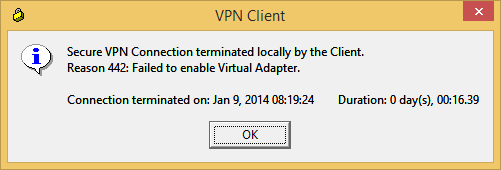
Symptom: When trying to use the Cisco VPN client under Windows 8 (and 8.1), you receive the following error.

Secure VPN Connection terminated locally by the Client.
Reason 442: Failed to enable Virtual Adapter.

VPN Client - Reason 442 Failed to enable Virtual Adapter


Solution: This is caused by an incompatible Windows 8 registry key.  You can fix this issue by running the powershell command below as an administrator or manually opening up the registry editor and changing the following value.

For 64 bit versions of Windows, use the registry value of Cisco Systems VPN Adapter for 64-bit Windows
For 32 bit versions of Windows, use the registry value of Cisco Systems VPN Adapter

Option 1: Execute the following powershell command:

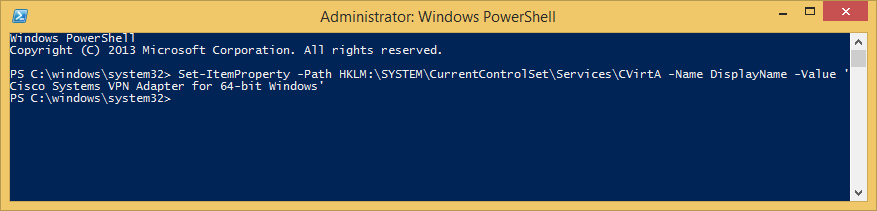
Set-ItemProperty -Path HKLM:\SYSTEM\CurrentControlSet\Services\CVirtA -Name DisplayName -Value ‘Cisco Systems VPN Adapter for 64-bit Windows‘
PowerShell - Set CVirtA DisplayName - Cisco VPN

Option 2: Navigate to the following key using the registry editor:

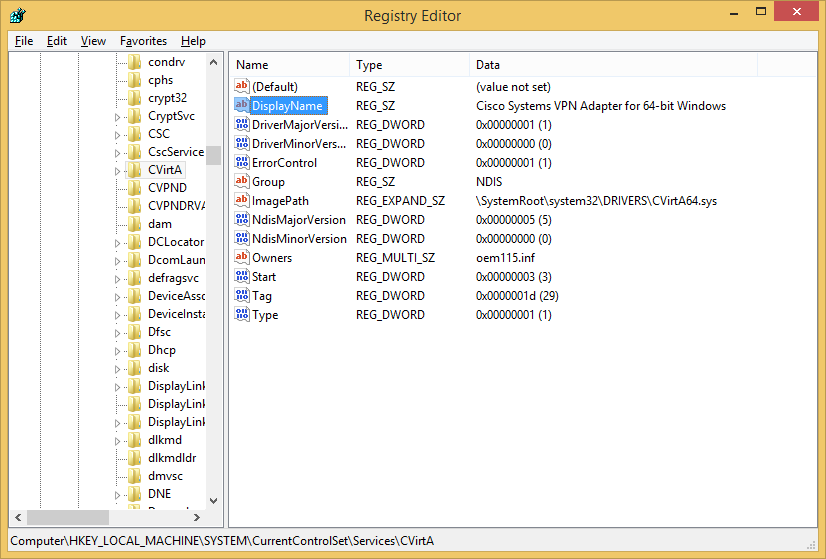
Computer\HKEY_LOCAL_MACHINE\SYSTEM\CurrentControlSet\Services\CVirtA

Set the DisplayName value to Cisco Systems VPN Adapter for 64-bit Windows
RegEdit - CVirtA - Cisco VPN - DisplayName

Upgrading Network Policy Server from Server 2008 R2 to Server 2012 R2

Synopsis: This tutorial will cover a basic “upgrade” path to go from Server 2008 R2 to Server 2012 R2.  This tutorial assumes you have a single Network Policy Server and you are wishing to reuse the same machine name, IP, and settings.  In environments needing high availability, you will need to complete each of the steps below, adding/removing each server being upgraded from your network load balancer.

In a standalone instance, you will experience some downtime as you will have to retire the old machine and setup a new one.

Tutorial

  1. Login to your Server 2008 R2 NPS server
  2. Open up a command prompt with Administrative Privileges
  3. Execute the following command
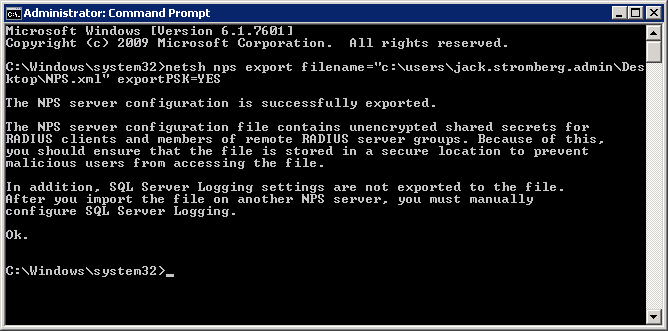
    1. netsh nps export filename=”c:\users\YOURUSERNAME\Desktop\NPS.xml” exportPSK=YES
      netsh nps export
  4. Copy the NPS.xml file to your local machine
  5. Disjoin the NPS server from the domain
  6. Retire the machine
  7. Recreate a new Server 2012 R2 machine with the same name and IP address
  8. Join the Server 2012 R2 machine to the domain
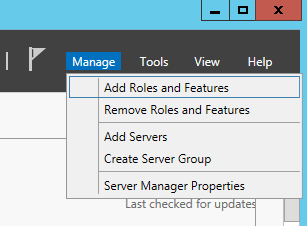
  9. Open up Server Manager and select Add Roles and Features
    Server 2012 - Manage - Add Roles and Features
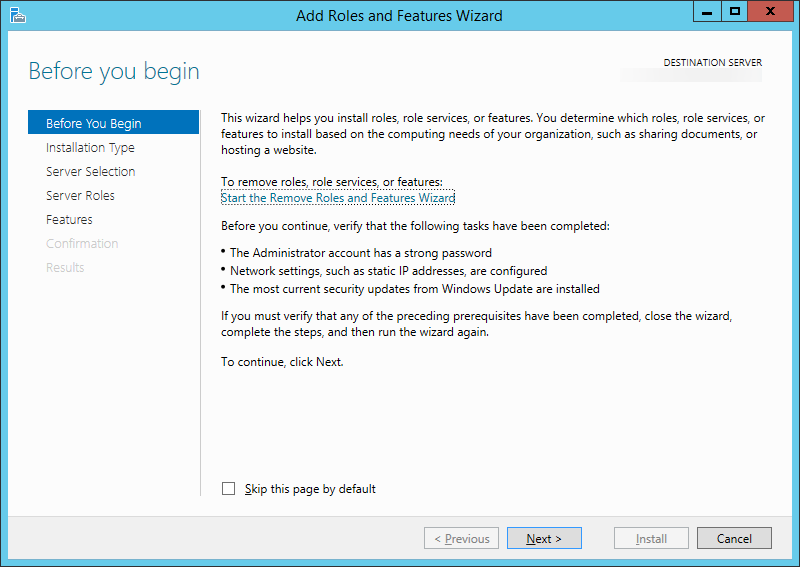
  10. Click Next > on the Before You Begin screen
    Add Roles and Features Wizard - Before you begin
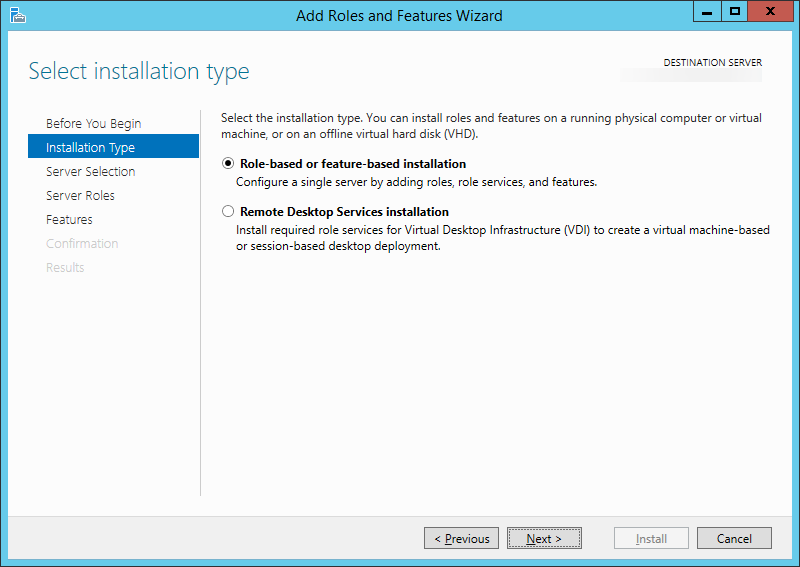
  11. Click Next > on the Installation Type screen
    Add Roles and Features Wizard - Select installation type
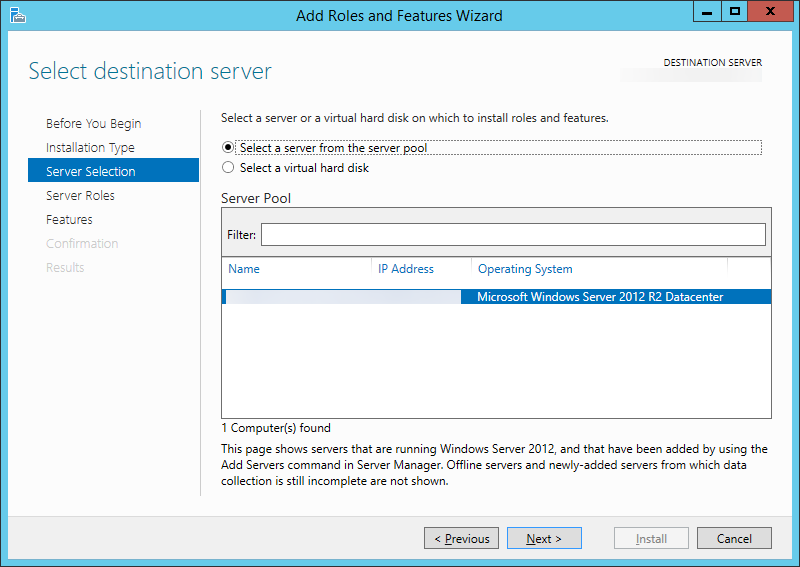
  12. Click Next > on the Server Selection screen
    Add Roles and Features Wizard - Select destination server
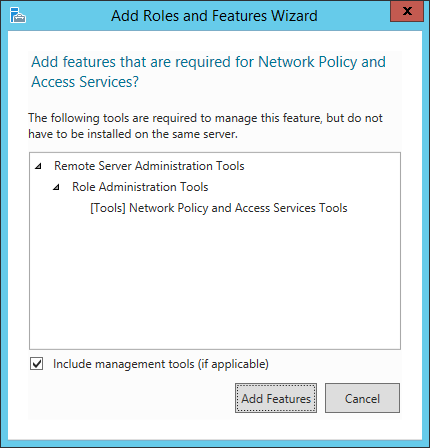
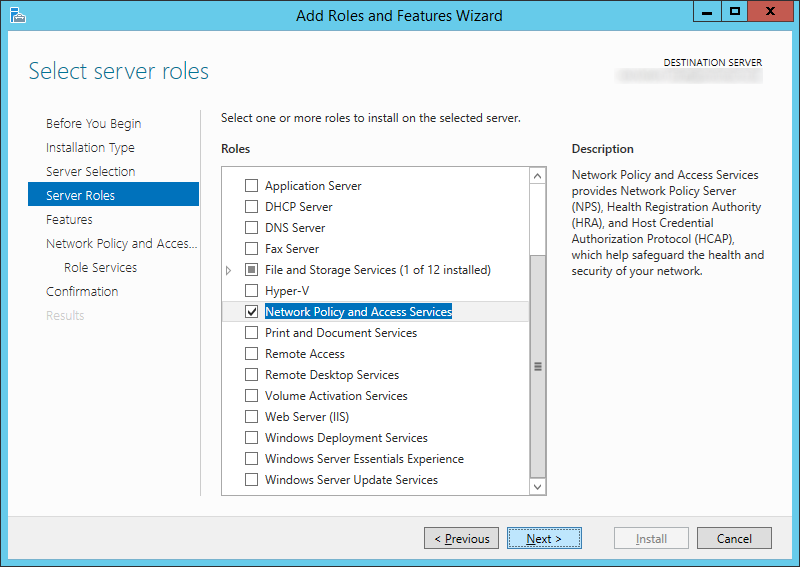
  13. Check Network Policy and Access Services (click Add Features when the screen pops up)
    Add Roles and Features Wizard - Network Policy and Access Services
    Add Roles and Features Wizard - Server Roles - Network Policy and Access Services
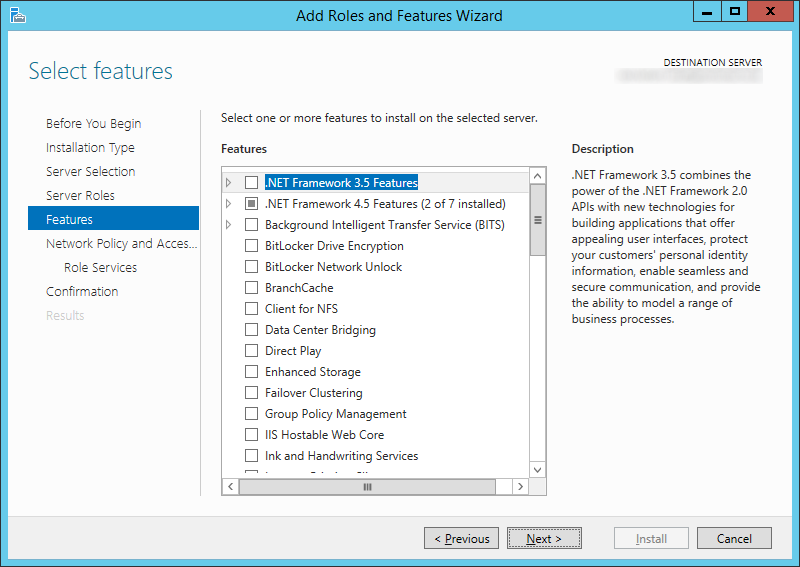
  14. Click Next > on the Features screen
    Add Roles and Features Wizard - Default - Network Policy and Access Services
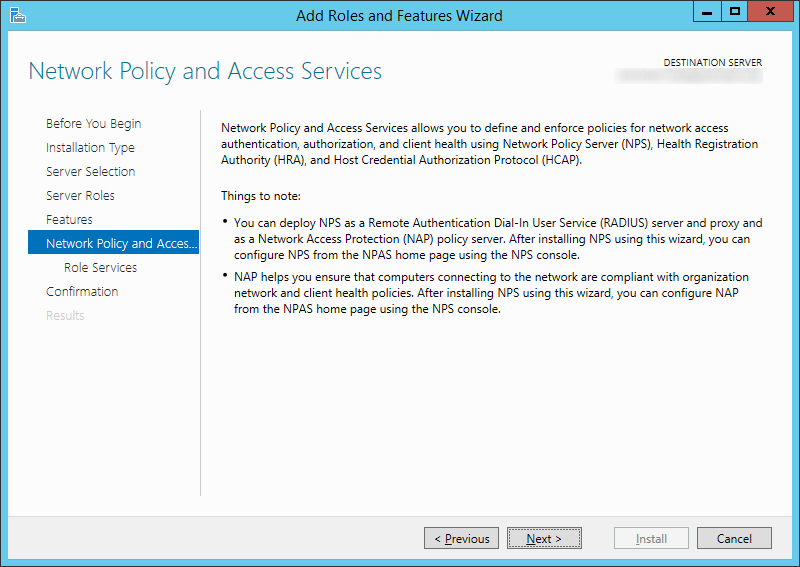
  15. Click Next > on the Network Policy and Access Services screen
    Add Roles and Features Wizard - Network Policy and Access Services Welcome
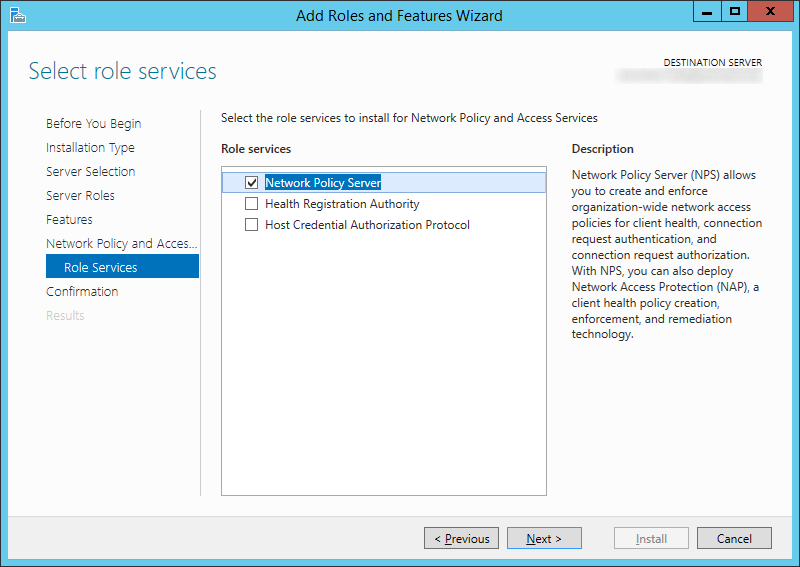
  16. Check Network Policy Server and click Next >
    Add Roles and Features Wizard - Role Services - Network Policy Server
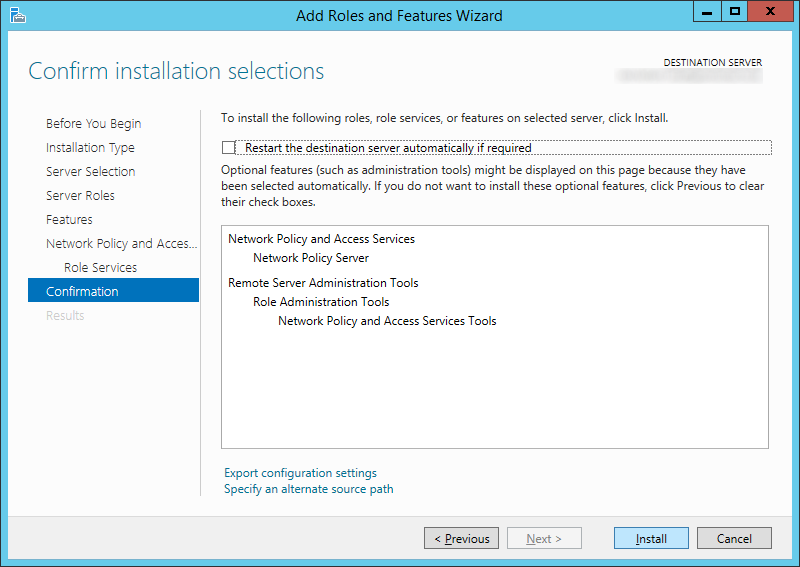
  17. Click Install
    Add Roles and Features Wizard - Network Policy and Access Services - Confirmation
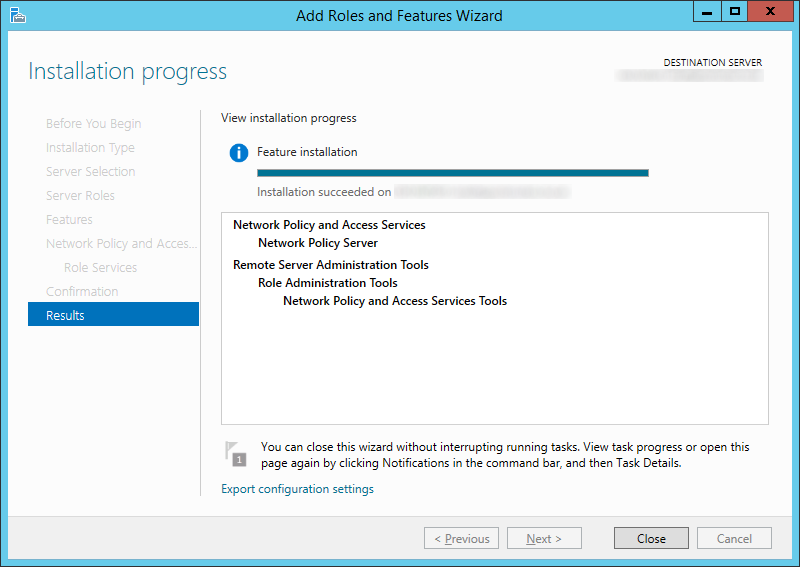
  18. Click Close once the installation has successfully completed
    Add Roles and Features Wizard - Network Policy and Access Services - Results
  19. Copy over your XML file from the old NPS server to your new Server 2012 R2 NPS server.
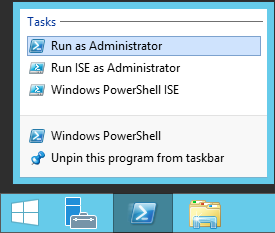
  20. Open up an administrative powershell prompt
    Server 2012 - PowerShell - Run as Administrator
  21. Execute the following command
    1. Import-NpsConfiguration -Path c:\users\YOURUSERNAME\Desktop\NPS.xml
      Server 2012 R2 - Powershell - Import-npsconfiguration
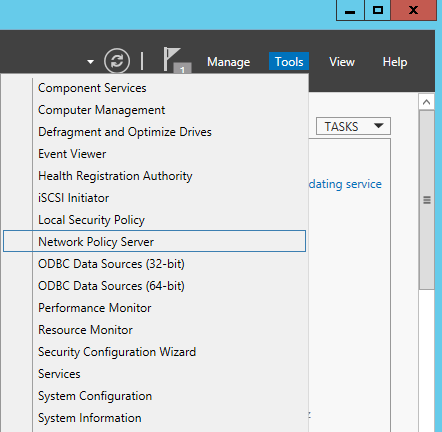
  22. Head over to Server Manager and select Tools -> Network Policy Server
    Server Manager - Tools - Network Policy Server
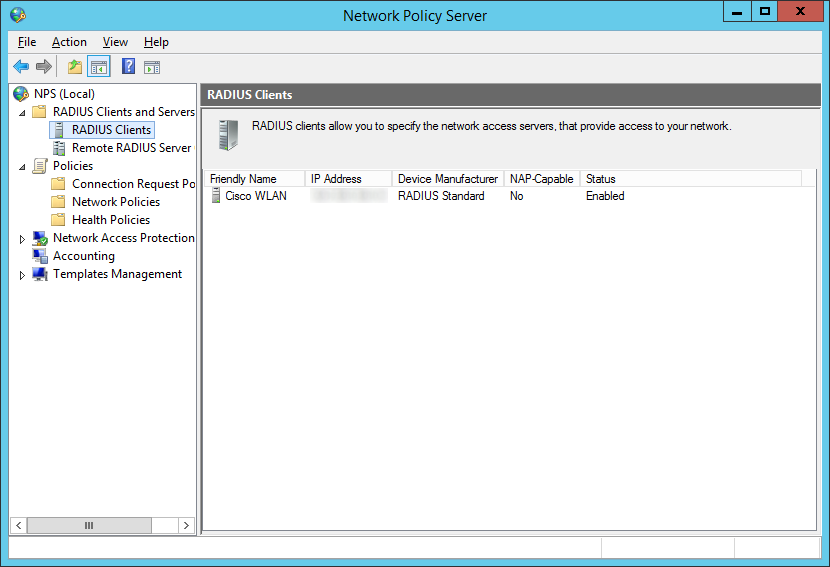
  23. Verify the rules imported (I selected RADIUS Clients and Servers -> RADIUS Clients to see if it imported my WLAN controller)
    Network Policy Server - RADIUS Clients
  24. Connect your machine to your wireless network! 🙂

Office 365 – The phone number you entered has already been registered by someone else.

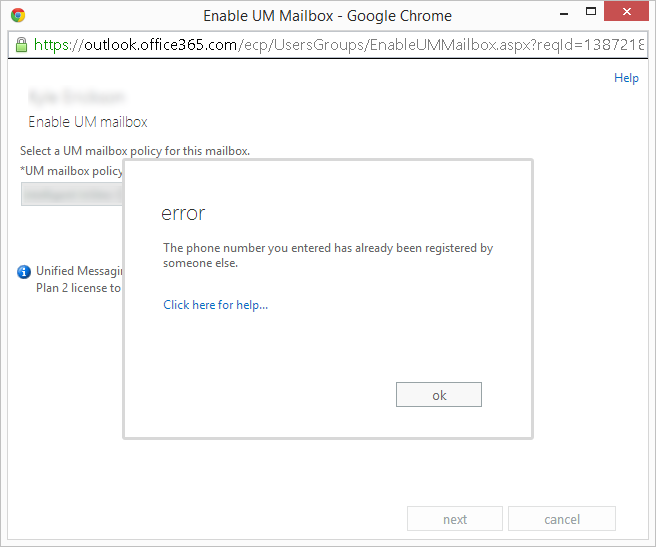
Symptom: You receive the following error when trying to enable someone for a Unified Messaging mailbox on Office 365 (Office 365 Admin Portal -> Exchange -> User Account -> Enable Unified Messaging -> Browse for UM mailbox policy).

error
The phone number you entered has already been registered by someone else.
The phone number you entered has already been registered by someone else

Resolution: This was caused by having a duplicate UM Voicemail box number.  You can run the following powershell commands to identify which user has the duplicate number assigned to them.

Set-ExecutionPolicy unrestricted
$Session = New-PSSession -ConfigurationName Microsoft.Exchange -ConnectionUri https://ps.outlook.com/powershell/ -Credential $LiveCred -Authentication Basic -AllowRedirection
Import-PSSession $session
Get-Recipient -ResultSize Unlimited | where{$_.emailaddresses -like “*EUM:*PHONENUMBER*”} | fl displayname,emailaddresses